Overview of Booking Settings
Organization-wide and location-specific booking settings are set under two different tabs in an organization's admin console in the Biamp Workplace admin portal.
The Admin, Settings tab: Global booking systems for the whole organization.
- Organization-wide booking options for rooms, desks, and parking spaces.
- Organization-wide settings affecting booking such as, available hours.
The Locations tab: Booking-related settings for buildings, as well as individual location information and QR Codes.
- Individual desks, rooms, and parking spaces can be set to dedicated location.
- Booking QR codes are found on individual Location tab pages for desks, rooms, and parking spaces.
- Room images, equipment lists, capacity, and screen brightness are set on individual room Location-tab pages.
Global settings
Organization-wide setting for desks, rooms, and parking space settings are accessed by selecting the Settings cog tab on the organization's admin console. Booking settings can be found under all four of the Setting page's sub-tabs.
Organization settings sub-tab
Allow users to find colleagues
Enabling this setting allows users to share and see colleagues' booked desks and rooms.
Calendar sync
This option allows the organization to be integrated and synced with Google or Microsoft calendars, showing booking times in these calendars and enabling booking through them.
Time and language setting
Date-time and language settings for booking events and booking device displays are found in this section of the Organization tabs.
-
Time zone
-
Language
-
Time format
-
Days and hours that the organization's assets can be booked during
Opening hours
Setting opening hours defines periods when bookable locations across the organization can be reserved or checked into. These can be overridden for individual locations and their sublocations on the admin console's Locations page.
PIN Code
-
Sets a PIN code for all users in the organization. All users will use this PIN for booking locations.
- Calendar settings
-
Calendar integrations are set up here.
-
Desk, Room, and Parking tabs
These tabs allow administrative users to set the following booking and booking-related settings for all desk, room, and parking locations in the organization. These can be overridden for individual locations on the Locations page of the admin console.
General Settings
-
Sets how many days and hours from the start of a day desks and parking spaces can be booked for.
-
The maximum duration in hours that desks and parking spots can be booked for. A 0 sets no limit.
-
The default duration in minutes that desks and parking spots can be booked for. A 0 sets no limit
Check-in settings
-
How early booked desks and parking spots can be checked in to before their booked check-in times, in minutes.
-
How late booked desks and parking spots can be checked into after the booked check-in times, in minutes.
-
Allow remote check-ins using the mobile app while not being at the desk or parking space.
-
Allow QR code check-ins by scanning a QR code label applied at the desk or parking space.
-
Automatic check-in. Users are automatically checked in at the time they have been booked.
RFID Identification (Desks Only)
Note: RFID check-in is not available for parking spaces.
Require identification to book
This setting requires the use of RFID tags to book a location. Otherwise, anonymous bookings are allowed.
Require identification to check in
This setting requires the use of RFID to check in. Checking this setting disables automatic check-ins.
Require identification to extend or check out of a meeting
Notifications
Sets the time until a late arrival notification is sent if a user with a booked desk or parking space has not checked in on time.
- Set in minutes
- A setting of zero disables notifications
Room Booking Settings
General settings
-
How many days and hours from the start of a day rooms can be booked for in the organization.
-
The maximum duration in hours that rooms can be booked for. A 0 sets no limit.
-
The default duration in minutes that rooms can be booked for. A 0 sets no limit.
Check-in settings
-
How early booked rooms in the organization can be checked into before their booked check-in times. In minutes.
-
How late booked rooms can be checked into after the booked check-in times. In minutes
-
Allow remote check-ins using the mobile app while not in the room.
-
Allow QR code check-ins by scanning a room QR code.
-
Automatic check-in. Users are automatically checked in at the time they have been booked.
RFID/PIN Identification
Require identification to book
This setting requires the use of RFID tags or PINs to book a room in the organization. Otherwise, anonymous bookings are allowed.
Require identification to check in
This setting requires the use of RFID tags or PINs to check in. Checking this setting disables automatic check-ins.
Require identification to extend or check out of a meeting
Requires an RFID tag or PIN to extend a meeting or check out.
Notifications
Sets the time until a late arrival notification is sent if a user with a booked room has not checked in on time.
-
Set in minutes
-
A setting of zero disables notifications
Individual location and device settings
Booking settings may be set for individual buildings, desks, rooms, an parking spaces. These will override organization-wide settings for those locations.
Building-level settings affecting booking actions
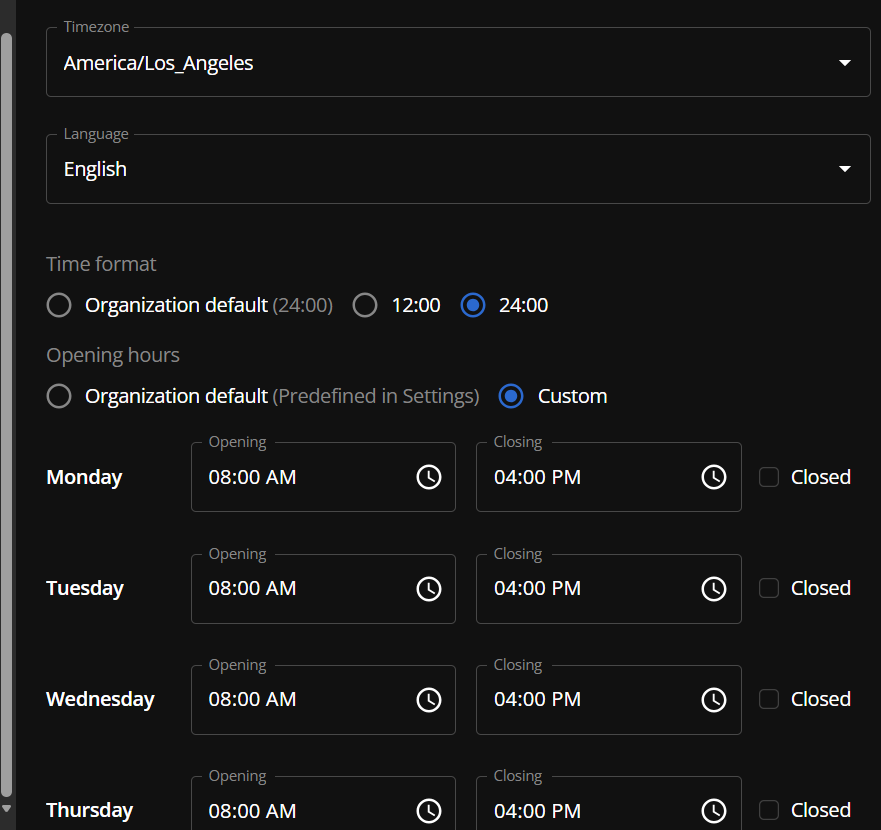
The General settings for buildings can be used to override the organization's global settings for the following:
- The language choice, which is used on booking device displays for this location and the rooms and desks beneath it.
- The time format setting for the location and room and desks displays beneath it.
- The hours and days the building is open for booking can be set by using the Custom opening hours button.
Sub-location booking settings
Includes rooms and desks.
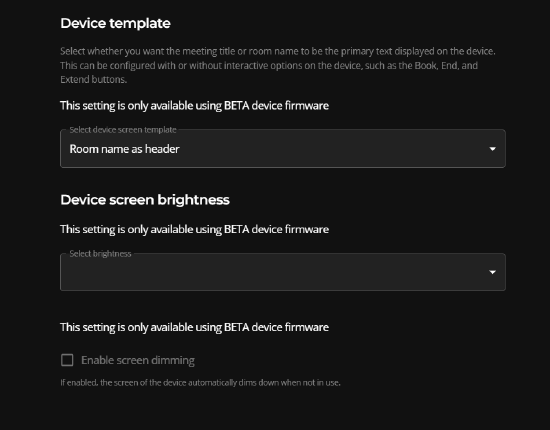
Device Template
This drop-down menu selects the room name or meeting title to be the primary text displayed on Naso screen.
Device Screen Brightness
This drop-down menu selects between High, Medium, or Low as the default brightness for the Naso screen.
Enable Screen Dimming
When checked, the screen will dim while not in use, and brighten when the device is approached.
Calendar Integration Enables
This drop-down menu allows you to select a calendar email if a calendar integration has been set up under the Settings, Organization tab.
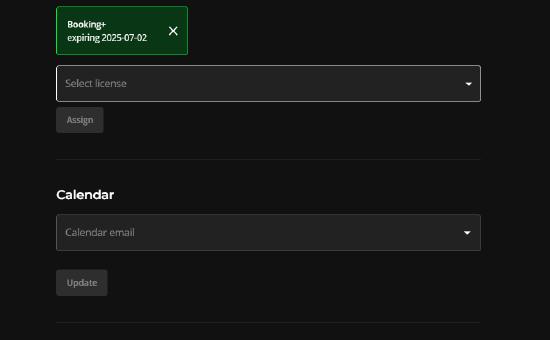
License requirement
A Booking license must be assigned to a location in order to enable calendar syncing.