Schedule an Admin Event
Schedule automated administrative events for audiovisual devices using the Biamp Workplace admin portal's Devices page.
Types of administrative events
The administrative events that can be scheduled for individual devices and device batches are:
Reboot the device
Locate the device: Sends a request to the device, causing an LED on its front panel and / or back panel to flash.
Update firmware: Select a firmware version to download and install for the device.
- Includes both the most recent firmware release as well as past versions.
Get logs
Recurring events: All event types except for firmware updates can be made into recurring events with user-specified frequencies, day of the week, and endpoint variables.
Procedure
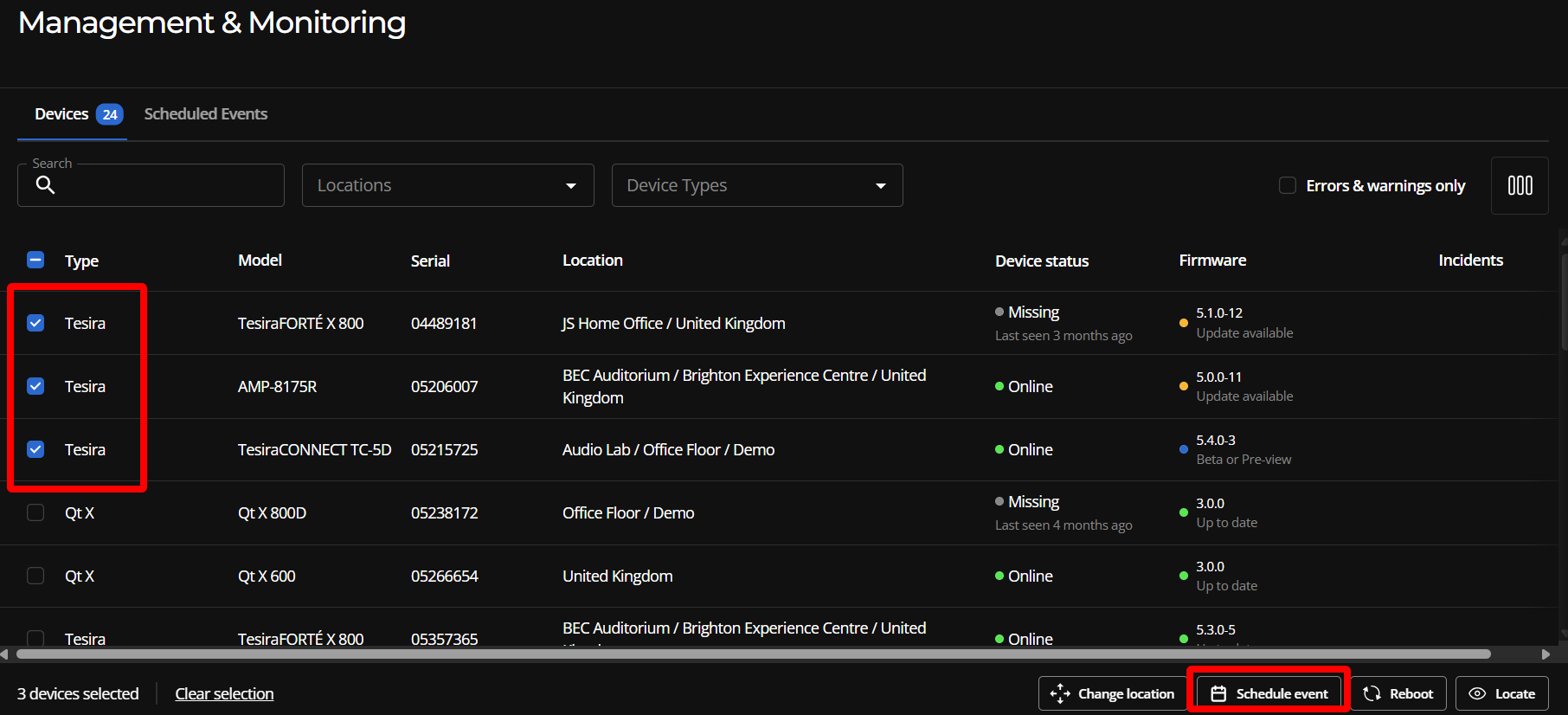
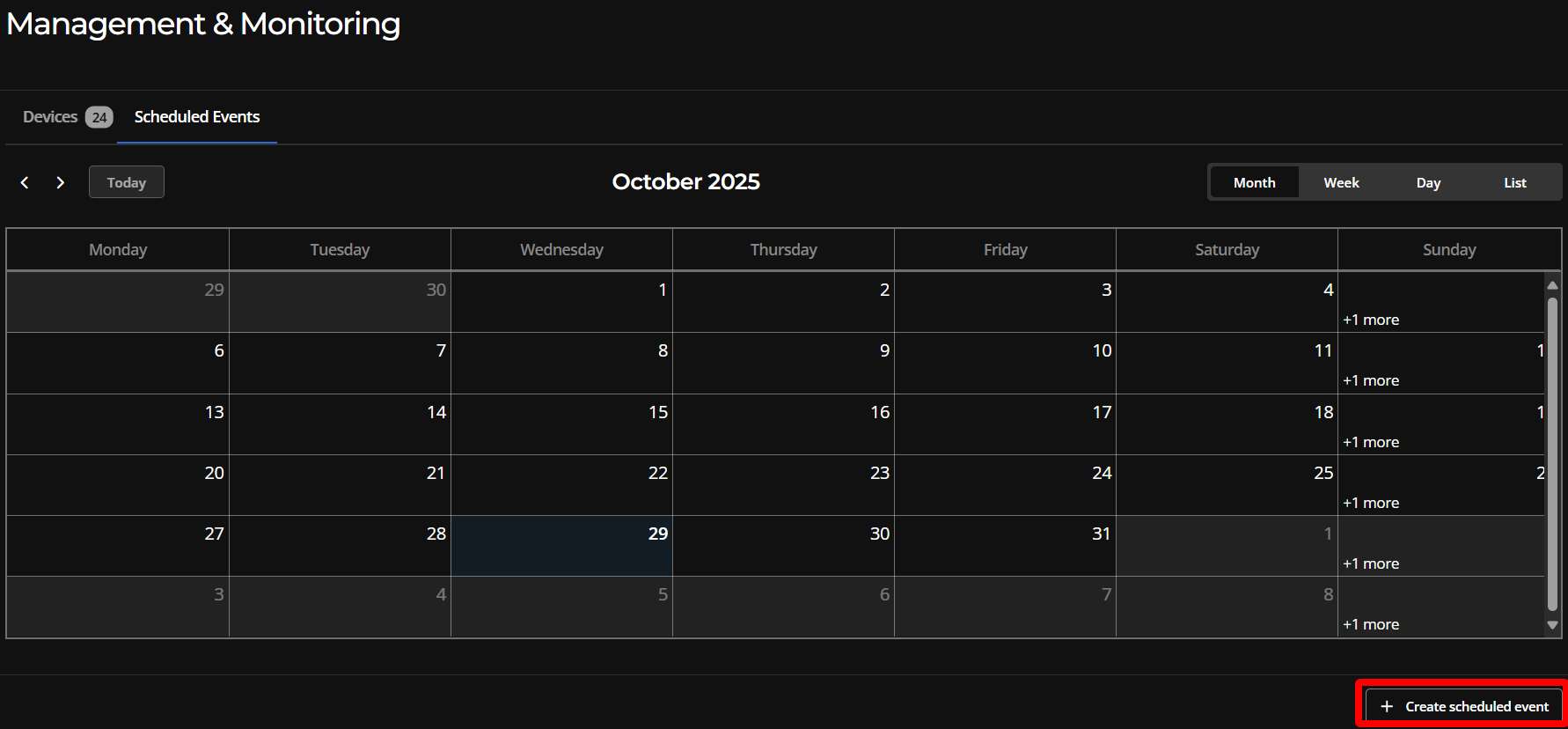
1. Select the "+ Create scheduled event" button on the Devices page.
This can be done under the Devices tab or the Scheduled Events tab.

- Devices page: Select one or more audiovisual devices for the event, and then select the "+Create scheduled event" button.
2. Scheduled Events page: Select the "+Create scheduled event" button.
3. Fill out the Event Form.
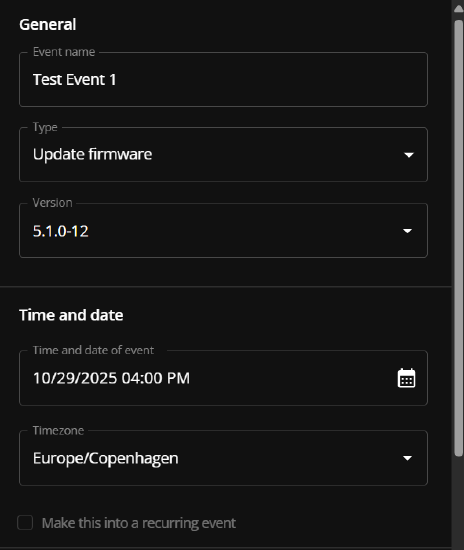
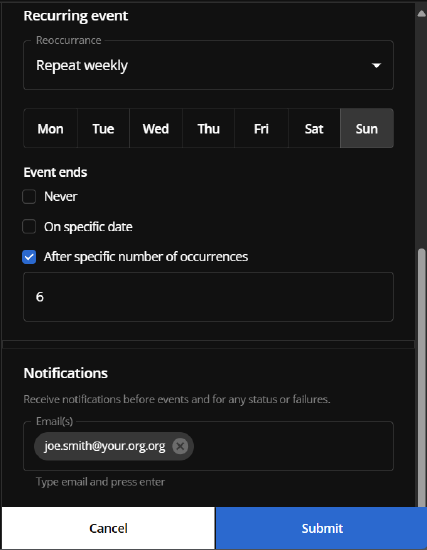
Examples note: The examples above represent two event types. A firmware update cannot be scheduled as a recurring event.
Available event types
General: Give the event a name and select the event type.
- The available types of events depend on the device types selected.
Time: Select a time and date as well as the time zone for the event.
Recurring event: The event may be set as a recurring event by checking the "Make this into a recurring event" box. This brings up options to set a recurrence frequency, a day of the week, and when the event ends.
- Firmware updates can not be set as recurring events.
- Recurrences repeat
- Daily
- Weekly
- Monthly
- Day of the week for weekly recurrence: Monday - Sunday
- Event ends
- Never (the event recurs indefinitely)
- On a specific date
- After a specified number of occurrences.
Notifications: Enter email addresses that will receive notifications before the event, as well as emails for any status or failures.
AV Device Types and Available Scheduled Events
Audiovisual device firmware updates are only available when devices of the same type are selected. You must create multiple scheduled events when updating two or more types of AV devices.
- For example, you would need to schedule separate firmware update events for Tesira and Qt X devices.
4. Select the "Submit" button.
- The event should now be visible on the calendar.