Creating an Organization
After creating and signing into your Biamp Workplace account, create an organization in the Workplace admin portal at https://workplace.biamp.app/.
Procedure
1. On the Biamp Workplace web portal homepage, select the "+ Create organization" button.
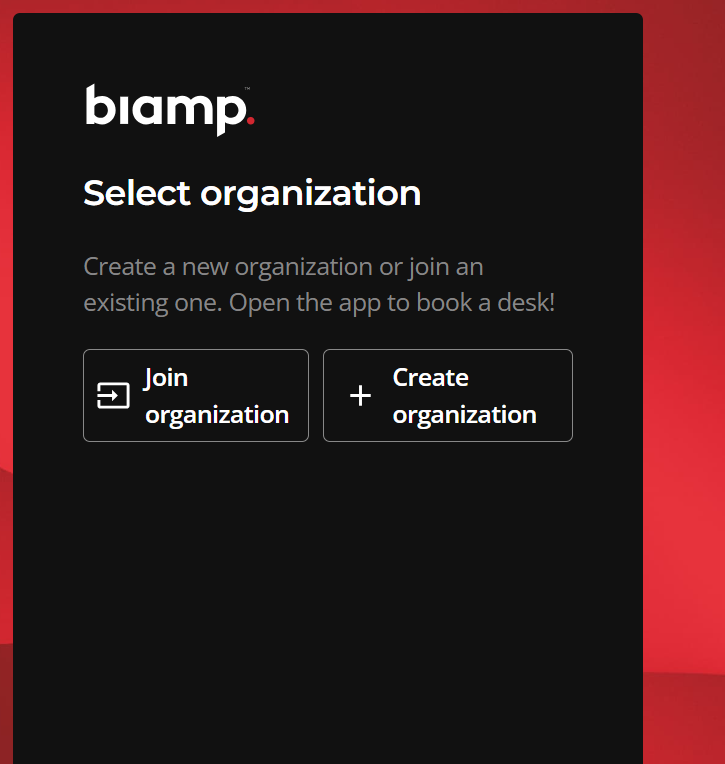
Note: You will be able to create additional new organizations at any time on the portal's homepage.
2. Fill out the fields in the Create organization form, then click the "Create organization" button.
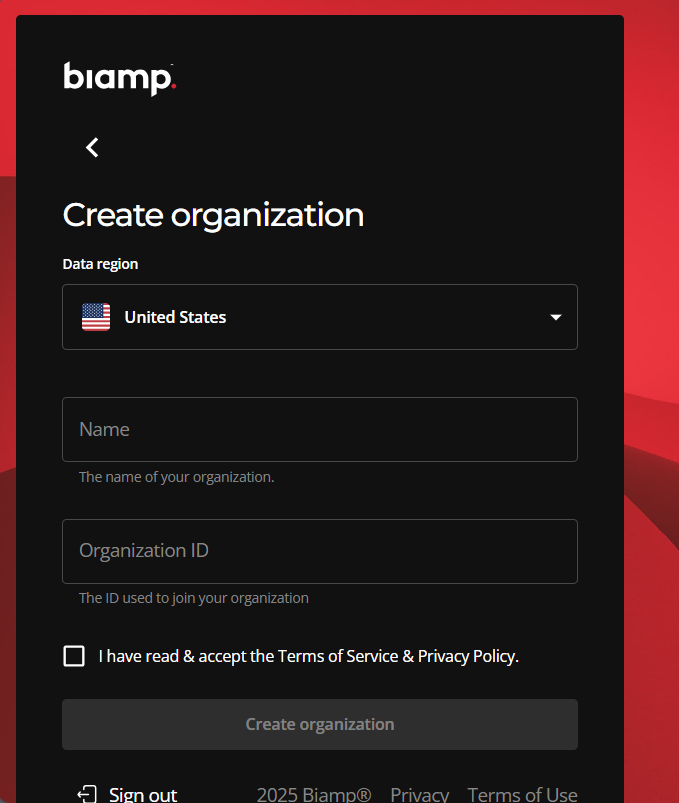
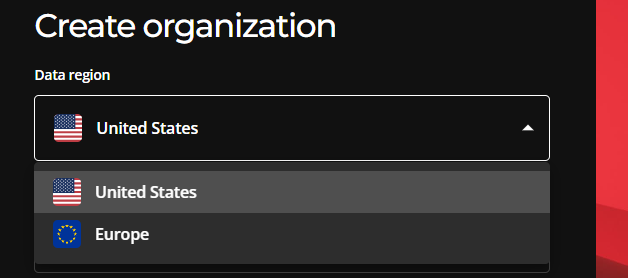
Data region (optional): By default, Biamp Workplace runs and stores organization data on a US server instance. Customers based in the European Union can opt to choose the Europe option to run and store their organization's information on a European server instance. This option is only available to customers in Europe.
Name: Enter your organization's name here. This will automatically generate an organization ID based on the name in the "Organization ID" field.
Organization ID: You may edit the automatically generated organization ID. However, Biamp recommends using the automatically generated ID.
- Record this ID. Users can use it to request membership in the organization, and it will be used for purchasing licenses.
- After creating the organization, you will be able to find the Organization ID under the Settings tab in the organization's Web Portal console.
Organization console
Creating a Workplace organization assigns you owner's rights and takes you to the organization's administrative console in the portal. Each organization has its own administrative console.