Ordering Licenses in License Manager
How to order licenses for distribution or resale in Biamp Workplace License Manager.
Procedure
If you have not already done so, sign in to the Biamp Workplace License Manager Portal at https://licenses.workplace.biamp.app/login.
- Note: If you have just been approved for access in License Manager, you may need to sign out and sign back into the portal for your approval to be visible.
1. Select the Orders Tab in the Navigation Pane.
- The Orders page is where you generate new orders for licenses.
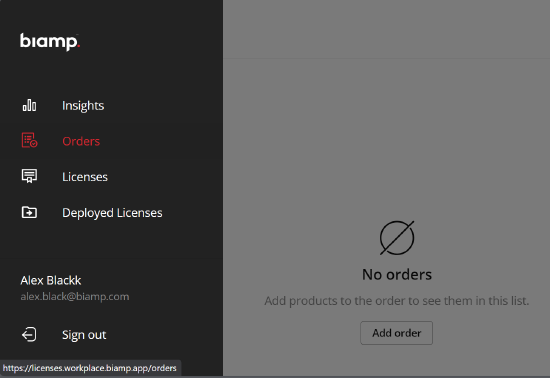
2. Select either of the Add Order buttons.
This starts the process of generating an order by bringing up an order form.

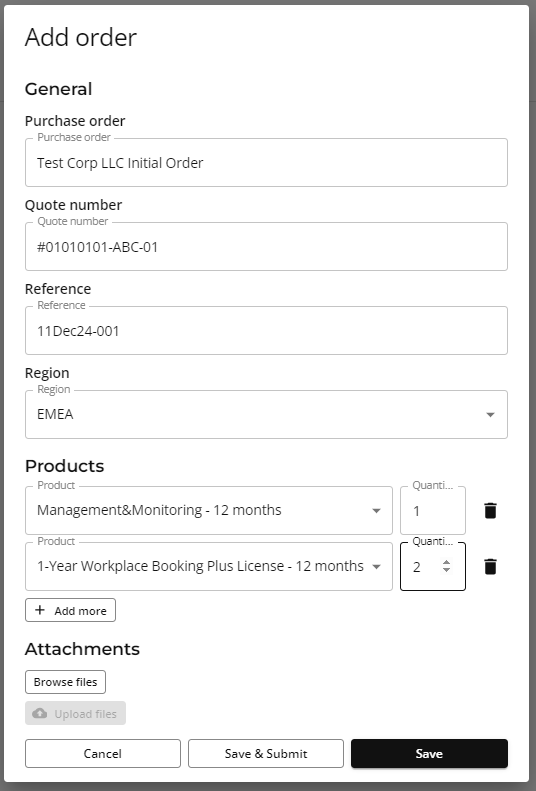
3. Fill out the Add Order Form.
The information in this form will be submitted to Biamp Customer Support for order processing.
Regions:
- The Americas cover all of North and South America.
- EMEA covers Europe, the Middle East, and Africa.
- APAC covers Asia and the Pacific Ocean.
4. Save the form and submit when ready.
You may save the form and come back to it later when ready, or save and submit the form as soon as you have entered all the information.
- Note: A confirmation message will appear indicating a filled-out form has been successfully submitted.
5. Track your submitted-and-saved orders.
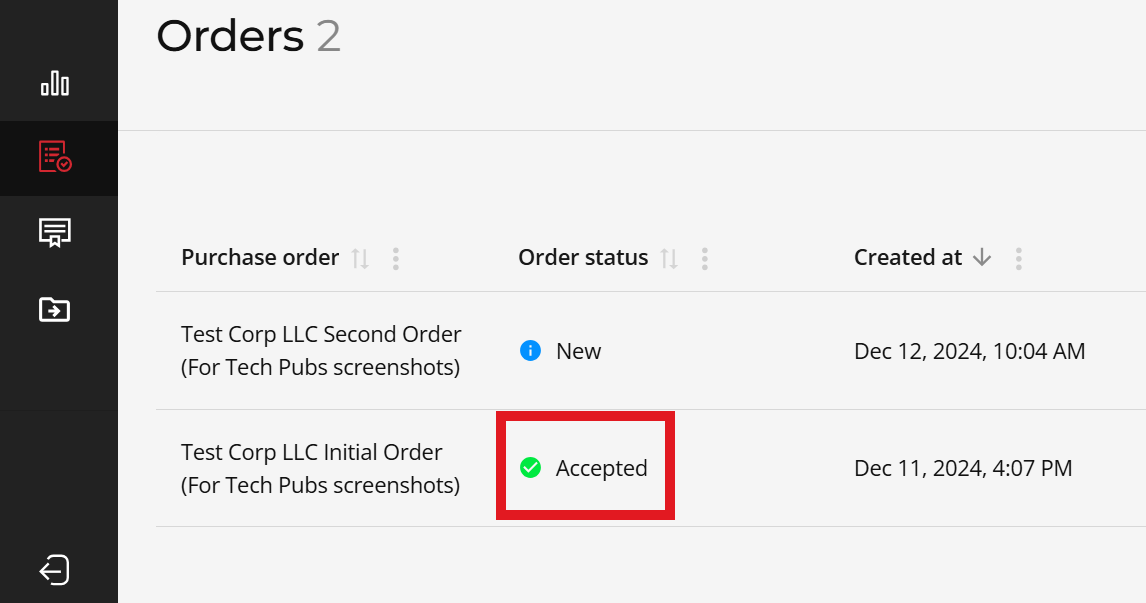
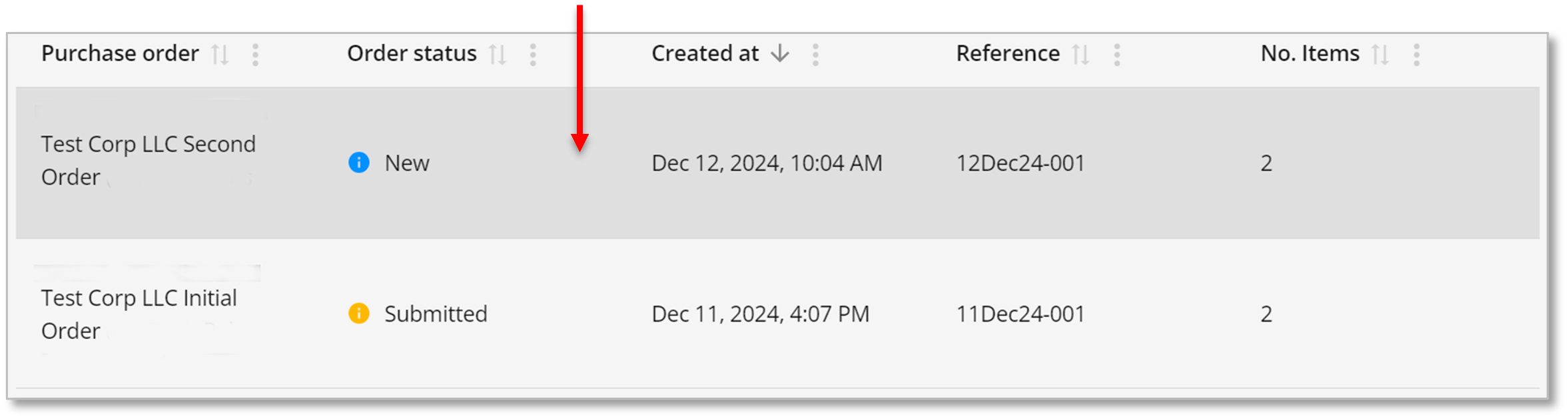
- Both submitted and saved orders are visible on the Orders page.
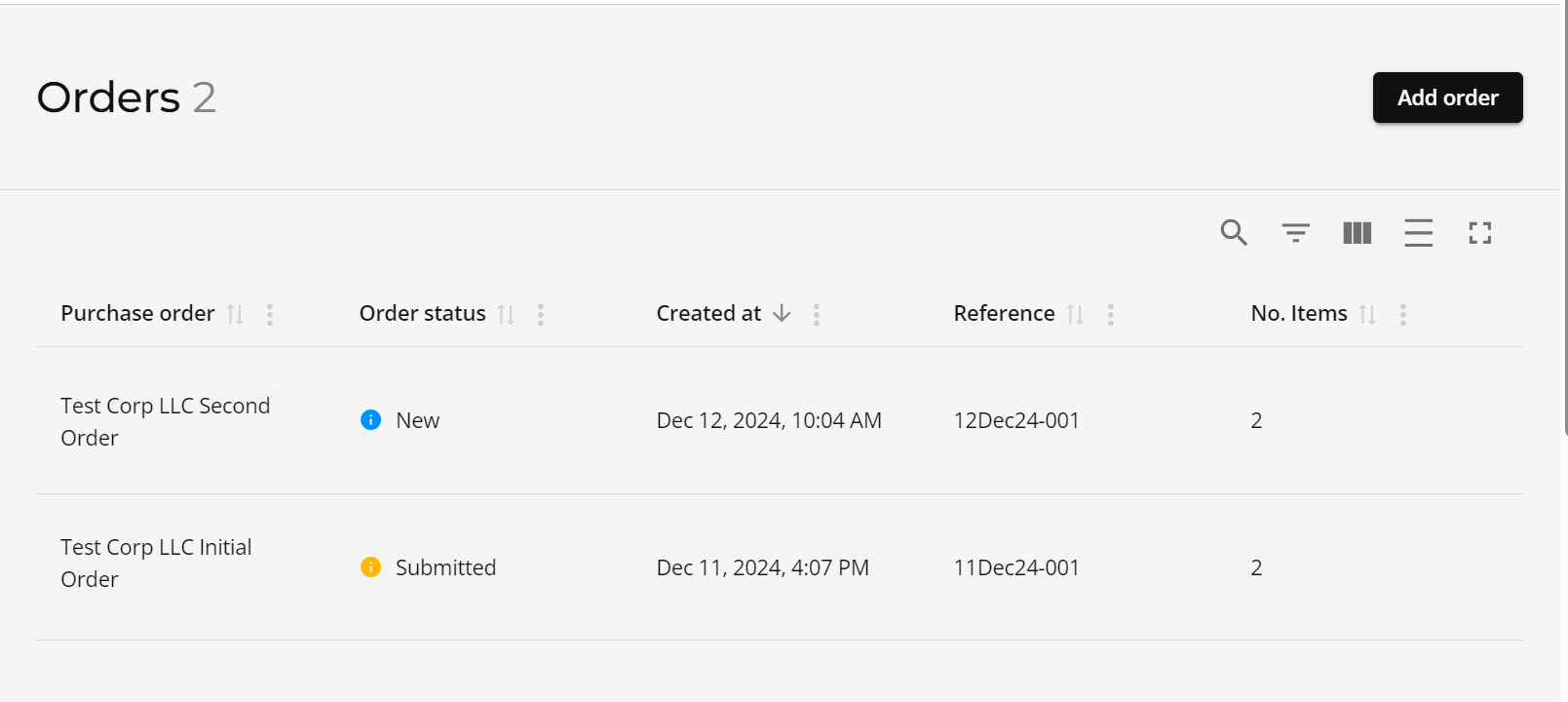
- Accepted orders will be indicated under the Order status column.
Resuming work on a saved order
To resume editing a saved order, click on or tap anywhere in the order’s row on the Orders page.
6. Receiving purchased licenses.
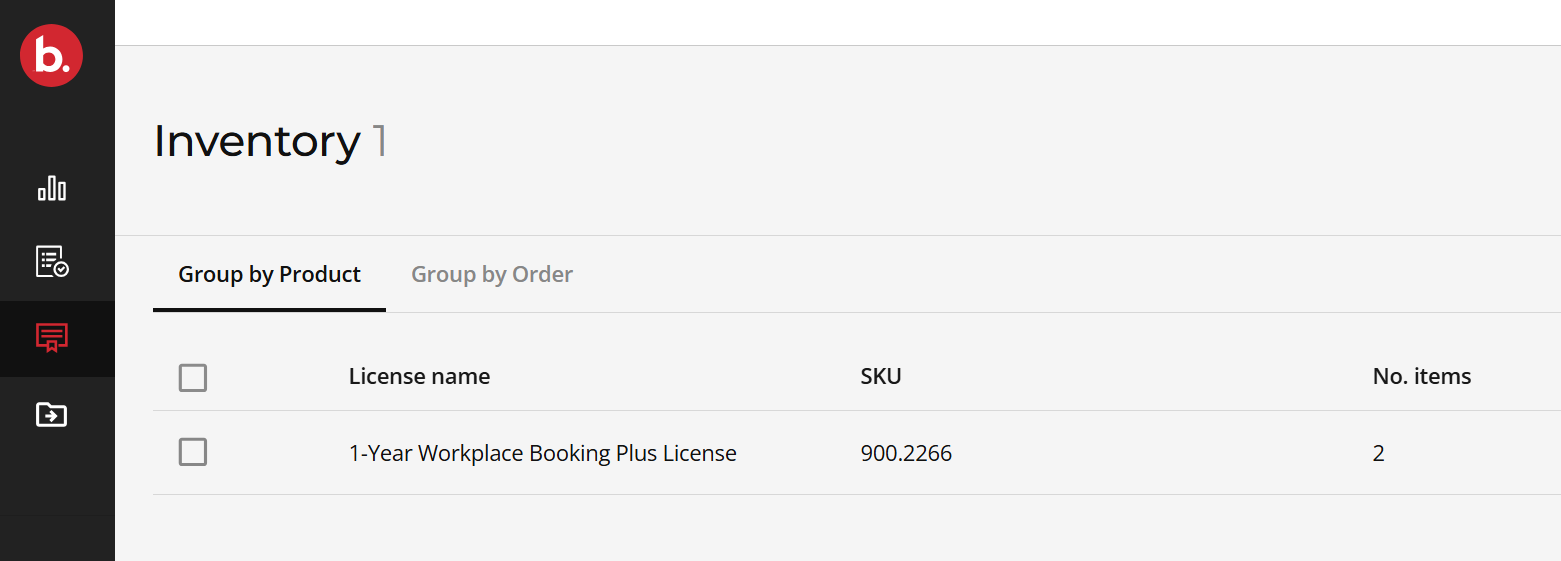
- Successfully ordered licenses will appear on the Licenses tab as inventory. These licenses may now be transferred to customers' Workplace organizations.
Transferring licenses to customers
For information on how to transfer licenses to customers' Biamp Workplace organizations, see Transferring Licenses in License Manager.