Transferring Licenses to Customers
To make a Workplace license available to a customer, it must be transferred to that customer's Biamp Workplace organization. This topic covers transferring licenses to Workplace organizations using the Biamp Workplace License Manager web portal.
Note: You may also use this procedure to transfer purchased licenses to a Workplace organization that you own or administer.
Requirements
Obtain organization IDs
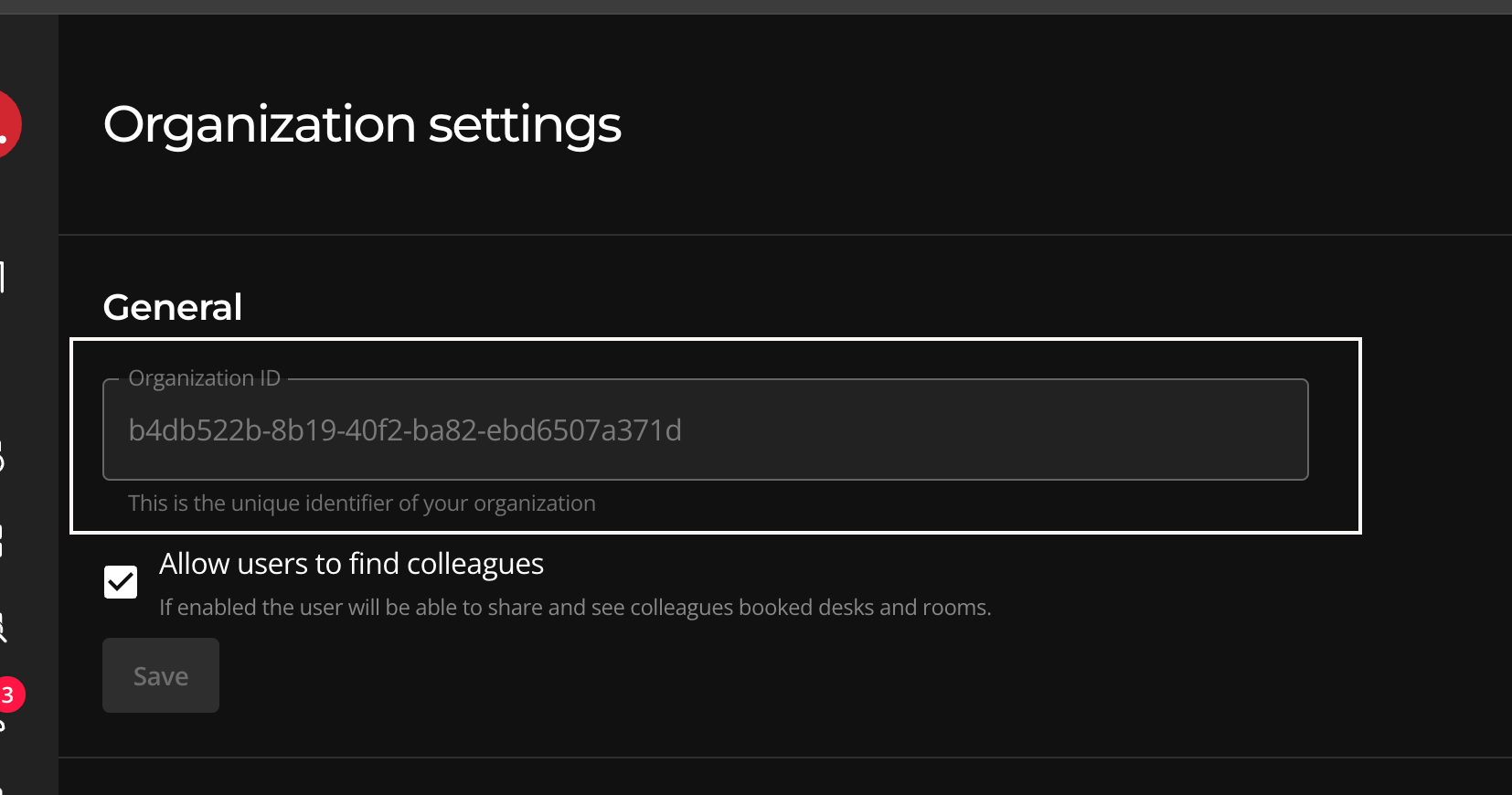
You will need the Workplace organization's "Organization ID" to transfer licenses to an organization that you are not a member of. Contact the Workplace organization owner or administrator to obtain the Organization ID.
- Organization IDs are found under Organization settings in the organization's Biamp Workplace web portal console.
Procedure
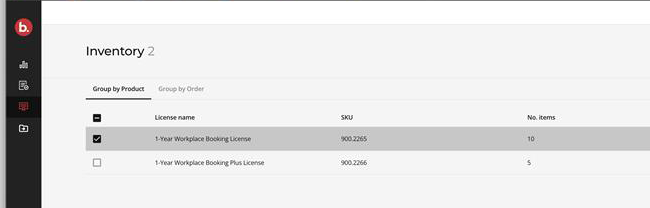
1. Select which license types you want to transfer to an organization, then click on the Transfer button.
- Clicking the Transfer button brings up a form to fill out.
- More than one License type may be selected.
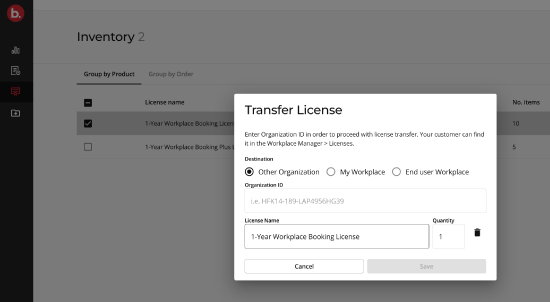
2. Fill out the form and select an organization "destination" type.
Other Organization: This allows you to transfer the license to another organization that can then sell and transfer the license to an end-user.
- Use this option if you are a distributor and want to sell and transfer the license to a reseller or integrator.
- This option requires entering the gathered Organization IDs mentioned at the start of this article.
My Workplace: This designation allows you to transfer licenses to Workplace organizations you are a member of and currently logged into.
- Use the dropdown menu in the top-right corner of the page to select which organization will receive licenses transferred using the My License option.
- This will automatically use the Organization ID of the organization selected in the dropdown menu.
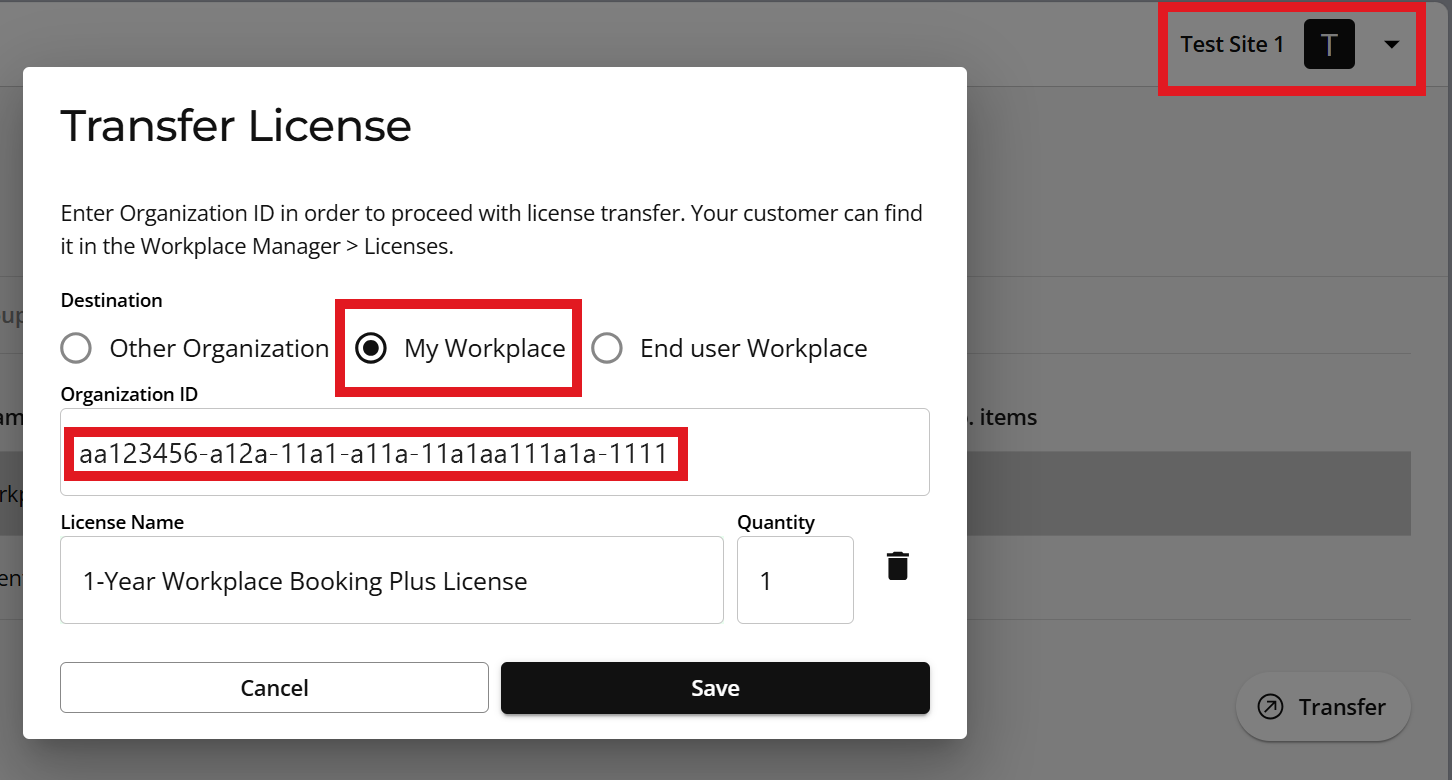
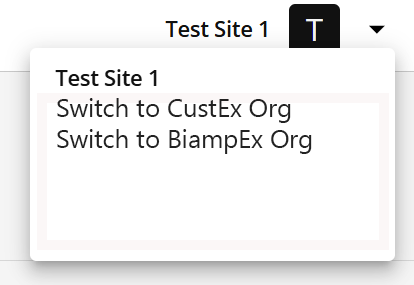
- This example assigns a Booking Plus License to a Workplace organization called Test Site 1 that the License Manager user is a member of.
End User Workplace: Select this option to transfer licenses to a customer's Workplace organization.
- This allows the "end-user" Workplace organization to assign and activate the license.
- This option requires entering the Organization ID mentioned at the start of this article.
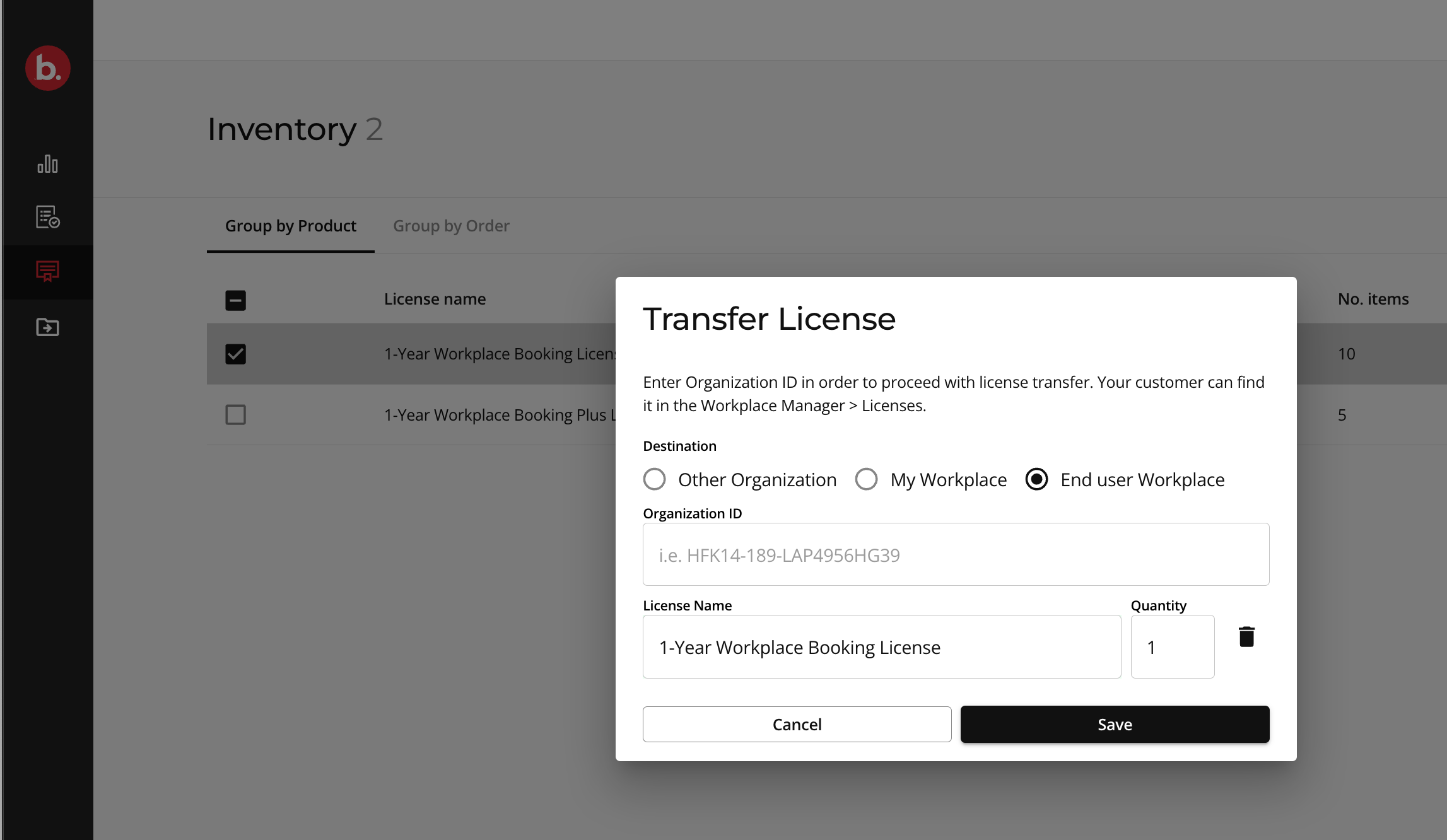
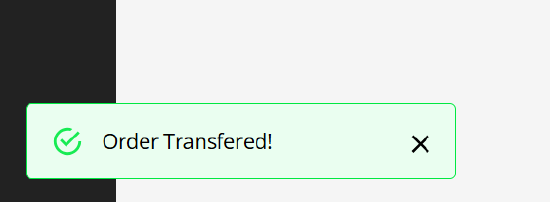
3. Click Save to transfer the licenses.

Viewing transferred licenses
The transferred licenses should now be visible to the customer under the organization console's Licenses tab in the Workplace web portal.
Further reading
- Getting started with License Manager
- Ordering Licenses in License Manager
- Workplace License Manager Portal Overview