Assigning Licenses in Organizations
This topic covers how to assign licenses to locations within a Biamp Workplace organization. See the Workplace Licenses Overview topic for information on License types, where they can be viewed in an organization's Web Portal console, and the Workplace functions they enable.
How to assign a license to a location
Licenses are assigned in a Workplace organization's console in the Web Portal under the Locations page. To assign a license to a location:
1. On the organisation console's Locations page, select the location you will be assigning and activating the licences for.
2. On the location's page, select the "Licenses" tab in the page's top ribbon.
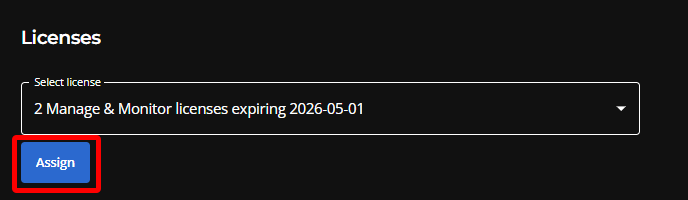
3. Open the Select Licenses dropdown menu to view a list of available licenses assigned to your Workplace organization.
- A license information block will be visible in this section if the location already has a license assigned to it.
4. Select the appropriate license type for the location and then click the "Assign" button. Please see the Workplace Licenses Overview article if you are unsure which license type to assign.
How do I assign only one license? If an option in the dropdown menu shows multiple licenses in an entry, only one of those licenses will be assigned to this location when selected. Licenses in the menu are grouped by expiration date to help reduce the length of the list.
Reminder: While multiple licenses can be assigned to a location, only one is required to enable Workplace functions for that location.
Success
- A license assigned message will appear to indicate a successful assignment.
- A green license information block will appear on the location's page, indicating the license is active.