Workplace Licenses Overview
This topic covers Biamp Workplace license functions, types, as well as information resources on purchasing licenses as an organization administrative user or as an authorized Biamp reseller or distributor.
License functions in Biamp Workplace
Adding and activating a license to a location in your Workplace organization enables Biamp Workplace functions for all devices assigned to that location.
License Types
Two types of licenses are available for Workplace locations:
Monitor and Manage
Enables device monitoring and management for all devices assigned to a location.
Booking
Enables device monitoring and management for all devices assigned to a location, as well as scheduling functions and calendar integration for any booking device added to the location.
Booking Plus deprecated
Booking Plus licenses have been retired as of May 2026, though all existing licenses will operate for their full lifespan. The calendar integration function, previously exclusive to the Booking Plus license, has been added to all standard Booking licenses purchased after the May 2026 release of Biamp Workplace License Manager 2.3.0
Moving licenses
Licenses can be moved from one location to another within an organization. However, licenses cannot be transferred to other organizations.
Purchasing licenses for your organization
For information on purchasing licenses for a Biamp Workplace organization, see Acquiring Licenses for an Organization.
Licenses included with newly purchased devices
Each newly purchased device that comes with an included 1-year license will generate a license when you assign it to a location in your Biamp Workplace organization.
Adding multiple devices with included licenses will add all their licenses to that location. Reminder: licenses can be moved to other locations inside an Organization but not transferred to other organizations.
The year-long activation period of an included license begins as soon as it is assigned to a location. Only one license is needed to monitor and manage all devices assigned to a location.
Where to find licenses in an organization
Purchased licenses will appear under the License tab of your organization's administration console in the Biamp Workplace admin portal.
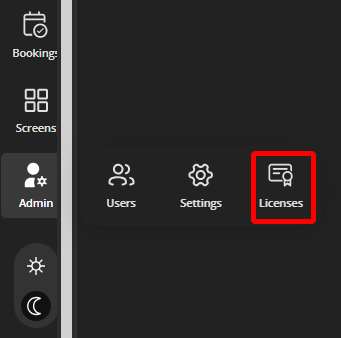
The Licenses page for an example organization.
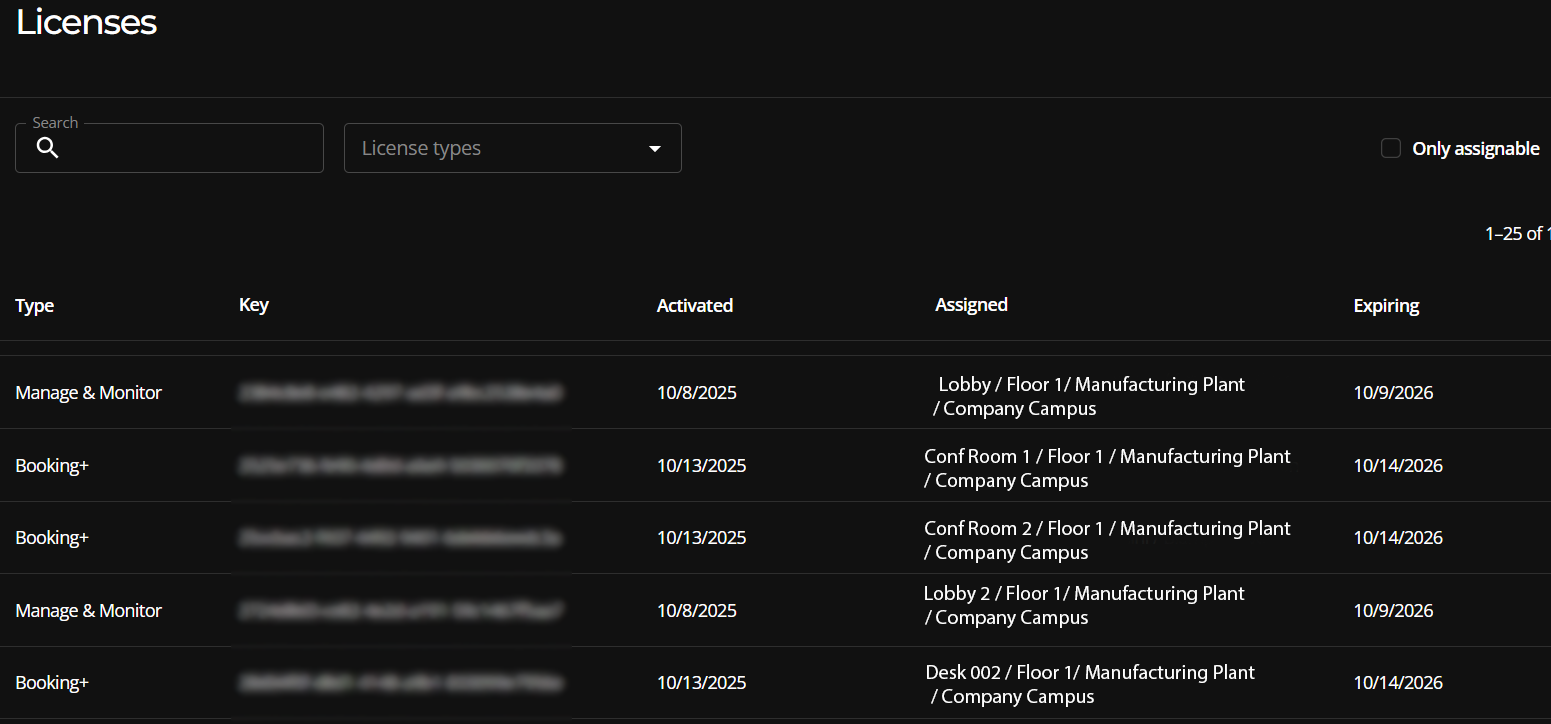
Please Ignore the Add Licenses Button
The + Add License button is a legacy feature and is scheduled for removal from the user interface. Adding licenses to an organization has been automated.

Where to assign licenses
Licenses are assigned to individual locations in the organization Web Portal console on the Locations page. For more information, please see Assigning Licenses to Locations.
Information for resellers and distributors
For information on how to become an authorized reseller or distributor and then purchase and assign licenses to customers' Workplace organizations, see Workplace License Manager Portal.