Overview of Screens
Types and functions of overview screens
Biamp Workplace admin users can create two types of overview screens:
- Monitoring screen
- Scheduling screens
Monitoring overview screen functions
Each Monitoring Overview screen provides a map view for a Workplace location floor plan, showing the real time status of bookable spaces as well permanently assigned spaces and the locations of useful, non-bookable spaces such as restrooms (WCs) or elevators. This screen also includes a real time status text panel for the bookable spaces.
The Monitoring Overview screen is intended to provide a cleaner user experience than the older scheduling Overview map and tile screens.
Scheduling overview screens functions
Scheduling screens display location and status information about bookable rooms and desks on a floor. These Overview screens are shown on public display monitors and provide useful navigation aids to onsite users.
An scheduling Overview screen can be set to one of two view types:
-
Map view: The display shows one Workplace location floor plan created under the Locations tab, depicting the placement and real-time status of bookable rooms, desks, and parking spaces on the floor.
-
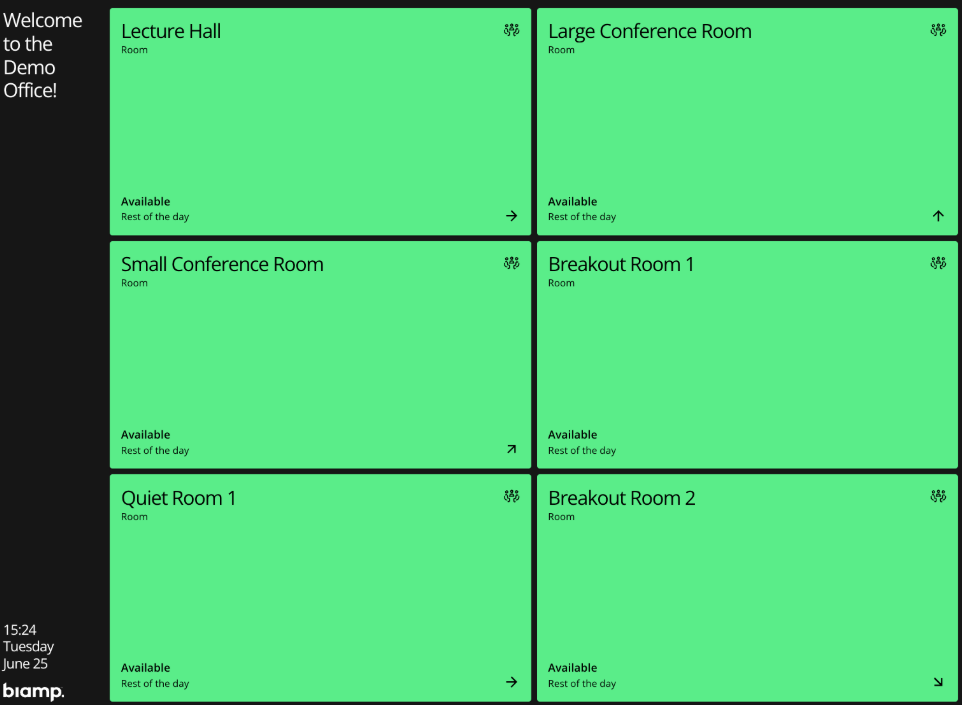
Tile view: Or the display can show tiles with description and real-time status information about each bookable room and desk on one Workplace location floor.
Scheduled alerts
Both Monitoring and Scheduling overview screens can be set to show scheduled alerts, such as notifications that an elevator is out of service.
Display monitor requirements
A display screen must have an onboard URL browser in order to connect it to Biamp Workplace and show an Overview screen.
View types
The map view display type
Both the Monitoring and older Scheduling screen types can be set to a map view mode.
Monitoring Overview screen map view
An example of a map view Monitoring overview screen showing the status panel on the left side of the screen and the real time status map on the right.
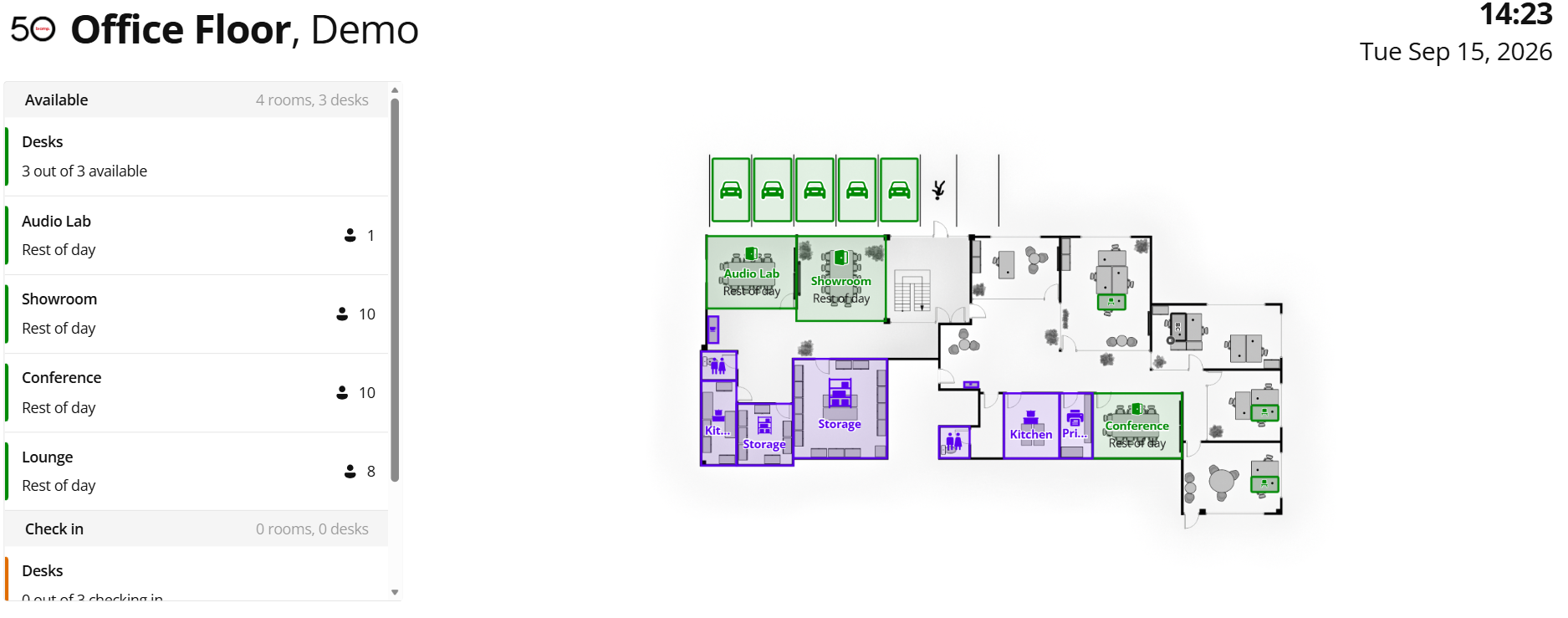
- Available bookable rooms, desks, and parking spaces are green.
- Designated non-bookable spaces are purple
- Bookable spaces with upcoming booked times show as orange.
- Bookable spaces currently in use display as red.
Scheduling Overview screen map view
An example of a scheduling overview map view screen on a dark mode display screen.
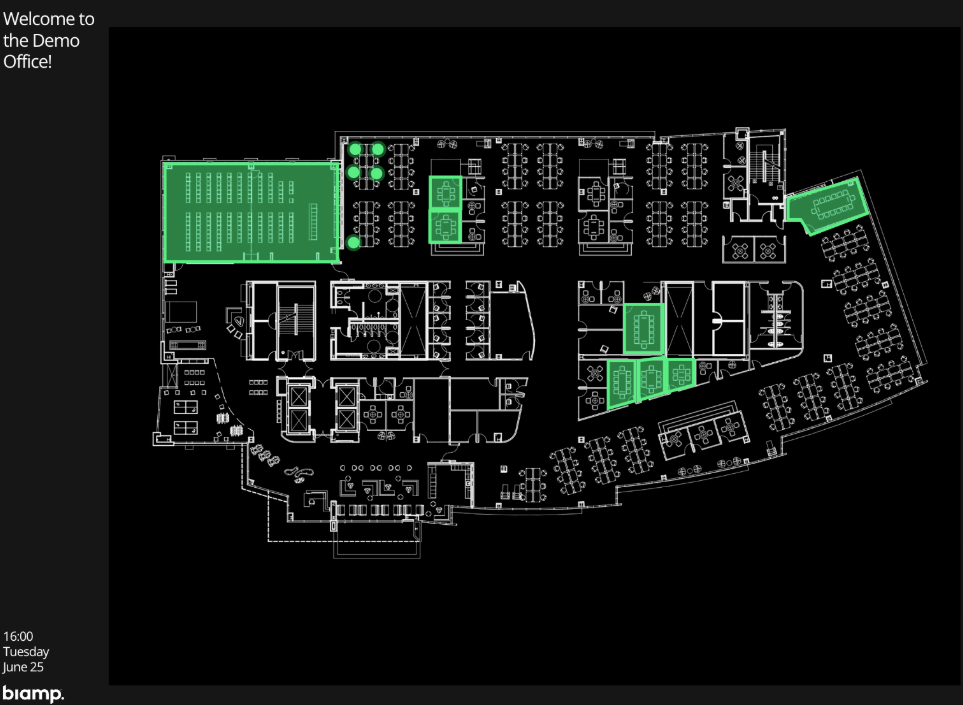
- Available bookable rooms, desks, and parking spaces are green.
- Bookable spaces with upcoming booked times show as orange.
- Bookable spaces currently in use display as red.
The Scheduling Overview tile view
A tile Overview screen with status indicator tiles pointing out the direction to bookable conference rooms.
- Available bookable rooms, desks, and parking space tiles are green
- Tiles for bookable spaces with upcoming booked times show as orange.
- Bookable spaces currently in use display as red tiles.