Locations Overview
Locations act as the building blocks of an organization, providing structure for the placement of devices, the basis for user and administrative maps, as well as how booking and monitoring & management licenses are assigned. This topic covers available types of locations and using those location types to create simple or complex Workplace organizations.
The Location tab
Locations are created and managed on the organization's admin console's Locations page.
- Locations can be added from the top down to build a nested hierarchy that reflects physical sites and buildings.
- Or, all location types can be added at the top level in order to build a flat hierarchy organization location layout.
Types of locations
Optional top and mid-level locations
- Sites: A Workplace organization can contain one site or multiple sites.
- Buildings: Each site can contain one building or multiple buildings.
- Floors: Each building can contain one floor or multiple floors.
- Parking lots: Each site can contain one Parking lot or multiple parking lots
Bookable locations
- Rooms: Meeting and conference rooms
- Desks: Work desks
- Parking spaces
Descriptions of the bookable location features and functions can be found near the end of this article.
How to use the top and mid-level location types
A Workplace organization's locations should reflect the physical locations where the system's booking and audiovisual systems are installed.
Example: A Moderately Complex Locations Hierarchy
Large or reasonably complex Workplace organizations should include nested site, building, floor, and parking lot location types where applicable.
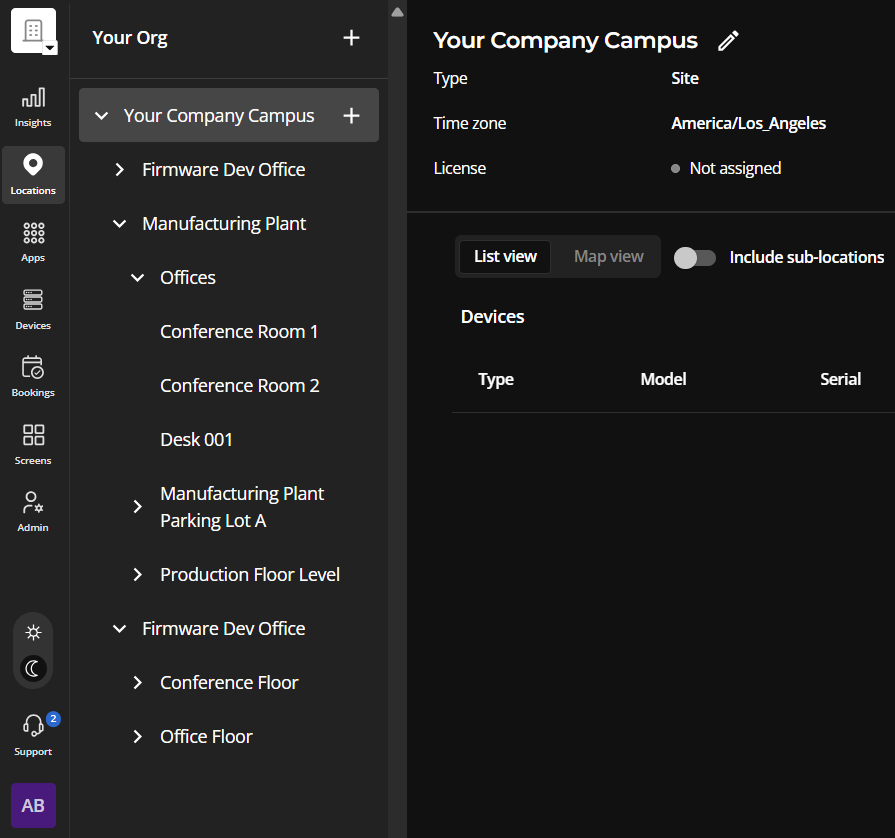
Site: Your Company Campus
- Building Manufacturing Plant
- Floor: Offices
- Bookable work desk: Desk 001
- Bookable room: Conference Room 1
- Bookable room: Conference Room 2
- Floor: Production Level
- Bookable room: Conference Room 3
- Floor: Offices
- Building: Firmware Development Office
- Floor: Office floor
- Bookable work desk: Desk 002
- Bookable work desk: Desk...
- Bookable work desk: Desk 010
- Floor: Conference floor
- Bookable room: Conference Room 4
- Bookable room: Conference Room 5
- Parking Lot: North Lot
- Bookable parking space: North Lot PS 1
- Bookable parking space: North Lot PS 2...
- Floor: Office floor
Ease of maintenance, growth, and mapping
Building a well-structured location hierarchy for a complex organization will make it easier to grow and otherwise adjust the organization as systems and physical locations change over time. Additionally, this will help in creating Overview display screens as well as floor plan navigation maps utilized by end-users in the Biamp Workplace Booking app.
Example: A flat hierarchy Workplace organization
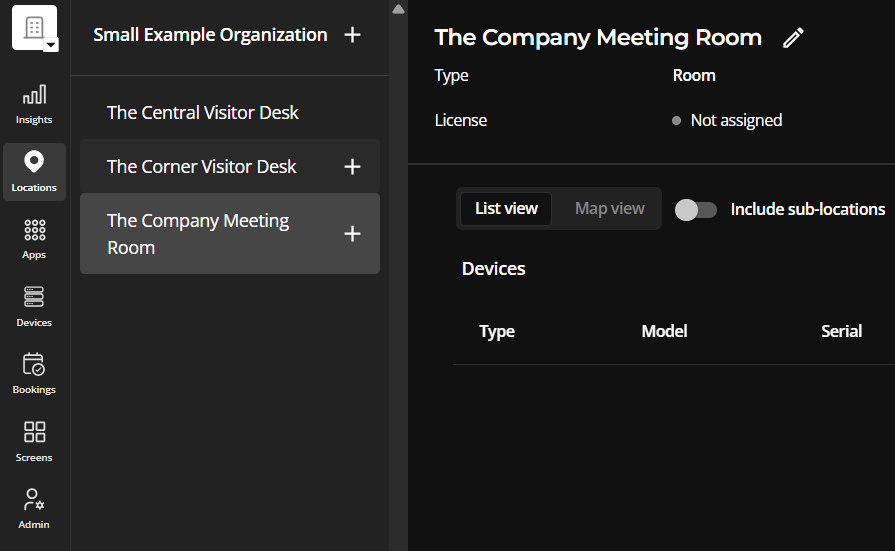
Bookable location types can be added at the top level of a Workplace organization to reflect the layout of a small Workplace organization. For example, a Workplace organization used to manage 1 bookable meeting room and 2 bookable desks residing in a single-story physical building does not require site, building, or floor locations in Workplace.
Keeping the Workplace organization locations this simple makes these booking spaces readily visible in the Biamp Workplace administration portal.
- Room 1 - Company Meeting Room
- Desk 1 - The Corner Visitor Desk
- Desk 2 - The Central Visitor Desk
Bookable location types
Room Locations
In Biamp Workplace, room locations are typically intended to be bookable meeting spaces.
Device type
A Workplace room will need to be assigned a Naso room panel to be fully bookable.
License type
Each Workplace room will need to be assigned a Workplace booking license to enable booking functions, as well as monitoring and management for the Naso device.
Calendar syncing
A room can be synced with an integrated Google or Microsoft calendar independent of the universal integration at the organization level.
QR code
A QR code label for the room is automatically generated. This image file can be downloaded and printed to allow booking with the Biamp Workplace Booking mobile app without need a Naso booking device present at the location.
Room information
The following descriptors can be added when creating a new room or editing an existing one. These are visible to end-users in the room's description in the Biamp Workplace Booking app.
- The room's name to be shown on maps and overview screens.
- Set a maximum capacity for the number of people in meetings.
- Location plan: A room floor plan based on an uploaded image file can be created for the room.
- Room image file: An image of the room can be uploaded that will be visible to end-users in the Biamp Workplace Booking App.
Amenities description
The following equipment and user comfort items can be added to the room's end-user-facing descriptions by checking them as available when creating a new room or editing an existing one. Checked amenities will be listed for end-users in the Biamp Workplace Booking app's description of the room.
- Connectivity
- Control Panel
- Display
- Furniture
- Lights
- Network
- Other
- Phone
- Projector Screen
- Room Temperature
- Sound Microphones
- Speaker
- Whiteboard
Booking settings and calendar sync for individual rooms
By default, a room will inherit the booking settings and calendar syncing set in the Workplace organization's universal settings. However, the general, check-in, digital identification requirements (RFID/PIN), and notifications can be set for individual rooms, breaking the high-level inheritance for those locations.
Device settings
The text displayed on the room's Naso booking device screen, and some interactive options, can be configured for an individual room. These include:
- The meeting title as the display header with or without interactive elements (Book, End, and Extend buttons).
- The room name as the display header with or without interactive elements (Book, End, and Extend buttons).
- Set a screen brightness for the room-booking device.
- Enable automatic screen dimming when the room-booking device is not in use.
Desk locations
A desk is a bookable Workspace that Workplace end-users can reserve.
Device type
Each Workplace desk requires an assigned a Kleeo desk manager device to be bookable.
License type
Each desk must be assigned a Workplace booking license in order to enable its booking functions, as well as monitoring and management for the device.
QR code
A QR code label for the desk is automatically generated. This image file can be downloaded and printed to allow booking with the Biamp Workplace Booking mobile app without need a Kleeo booking device present at the location.
Amenities description
The following equipment can be added to the room's end-user-facing descriptions by checking them as available when creating a new desk or editing an existing one. Checked amenities will be listed for end-users in the Biamp Workplace Booking app's description of the desk.
- Adjustable desk (sit / stand)
- Dual monitors
- External monitor
- Noise cancelling panels / Quiet zone
- Power outlet
- Video conferencing setup
- Wireless charger
Booking settings for individual desks
By default, a desk inherits the booking settings and calendar syncing set in the Workplace organization's universal settings. However, the general, check-in, digital identification requirements (RFID/PIN), and notifications can be set for individual desks, breaking the high-level inheritance for those locations.
Presence detection
Presence detection can be enabled when creating a new desk location or editing an existing one. When enabled, the presence of a person sitting at the desk:
- Triggers the Book Now prompt if the desk is available
-
Enables auto booking and dynamic extension while the desk is occupied
Parking space locations
A parking space is a bookable Workplace parking location. Creating and licensing a parking space location in Workplace allows users to view which parking spaces are available and how long they are available for using the Biamp Workplace Booking app. They can also book parking spaces and check in once they have parked, indicating to other users in the Workplace organization that the space is not available.
Device type
No device type is required for installation at a bookable parking place. However, an optional QR code may be generated in the Workplace admin portal for use as a printable label that can be affixed near the parking space. Scanning the QR code with the Biamp Workplace Booking app allows a user to check into the space or view its availability status.
License type
Each Workplace parking space location must be assigned a Workplace booking license to enable booking functions for it.
Dedicated locations option
The bookable room, desk, and parking space location types described in this section can be toggled to "Make this a dedicated location" during creation or subsequent edits. Dedicated locations were formerly known as private locations.
-
A dedicated location is assigned to a single location "owner".
-
The location owner can be any user in the organization.
A dedicated location can be added to plans for floor locations, making them visible to Organization end-users on the Booking app's Workplace floor plan maps, as well as on-site display screens showing Overview floorplan or Tiles screens.
Dedicated Location Use Examples
Making the human resources office locations visible on the Booking app: Adding a set of dedicated Rooms named HR Office 1 and HR Office to a floor's location plan will make those offices visible to employees using the Workspace Booking app's floor plan map screens.
Making restroom locations visible on an on-site public display screen: While the room location type is typically intended to denote bookable meeting spaces, adding non-bookable dedicated rooms to the floorplan locations of restrooms can be used to make these visible to site visitors who are looking at displays showing a floorplan Overview screen of their current physical location.
Bookable Location Booking Settings
Bookable locations inherit booking settings from the general settings. You can override the general booking settings by updating the location's Booking Settings.
Location plans
Location plans are created on the Locations page of individual locations in the admin portal console. They are used to generate three types of interactive floor maps in Biamp Workplace organizations.
For an overview of location plans, see Locations Plans Overview.