Workplace Tools User Interface
Function locations in the Biamp Workplace Tools desktop app.
Top ribbon
Device configuration apps button

Selecting the grid-of-boxes apps icon near the top-right side of the page brings up the Configuration Manager page. The page shows Workplace Tools configuration apps for supported product families.
A configuration app enables a Workplace Tools user to configure device settings for devices in that product family without needing to access the device's onboard administrative console. For example, the Tesira Config app on this page allows the user to configure device settings for devices in the Tesira family.
The user must be logged in to configure devices assigned to a Workplace organization.
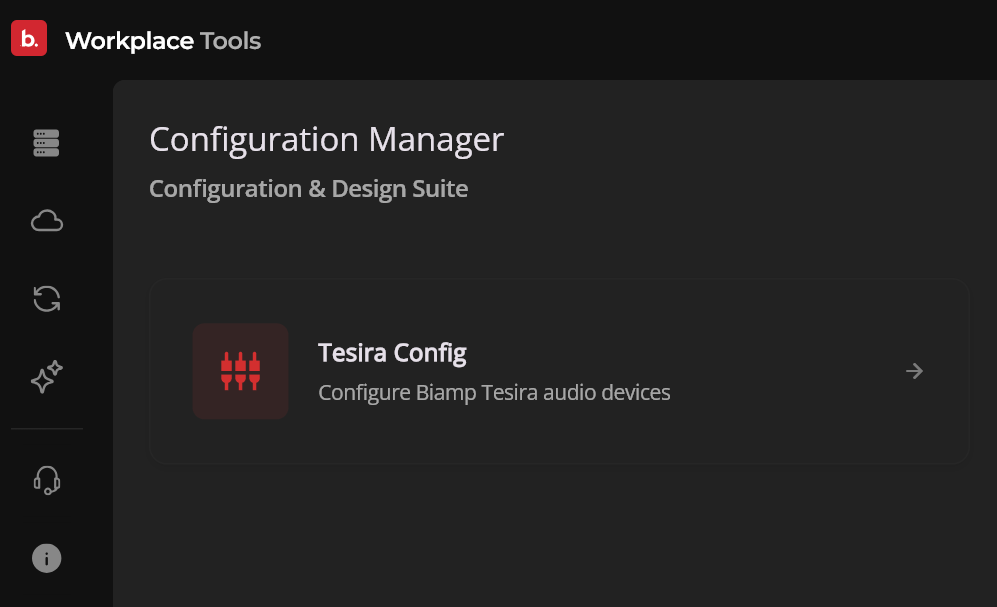
The device family configuration app can be opened on this page or by selecting a device on the Devices page and double-clicking on it.
Supported device familes: Biamp will add device families to the Configuration Manager through ongoing updates to the Biamp Workplace Tools desktop app.
Login button / User and Organization icons
Login button

The blue Login button is visible in the top ribbon on the top right side of the page when the user is not logged into Biamp Workplace. Selecting the button opens the user's default browser to log in to Workplace.
Log in: Select the "Login" button on the top right side of the page. Logging in will prompt the user to select an organization. The user's login session will persist for 24 hours on this device.
Logged-in user icon

An icon with the user's initials or portrait image is located near the top-right side of the app when the user is logged into their Biamp Workplace account. Selecting the icon brings up:
- User information
- The current login's remaining time
- The Logout button to sign out of the user's Biamp Workplace account
Organization icon

When logged in, the rightmost icon in the top ribbon is the Organization icon. Selecting this icon allows the user to switch to another Workplace organization by opening a list menu of all organizations the user is a member of.
Devices page
The app opens on its Devices page and will show devices discovered by its discovery service. However, device information will be restricted if the user is not logged in. This includes the Organization and Location columns showing "Private" for devices connected to Workplace organizations. Additionally, the user must be logged in to use device management functions, both for devices connected and not connected to Workplace organizations.
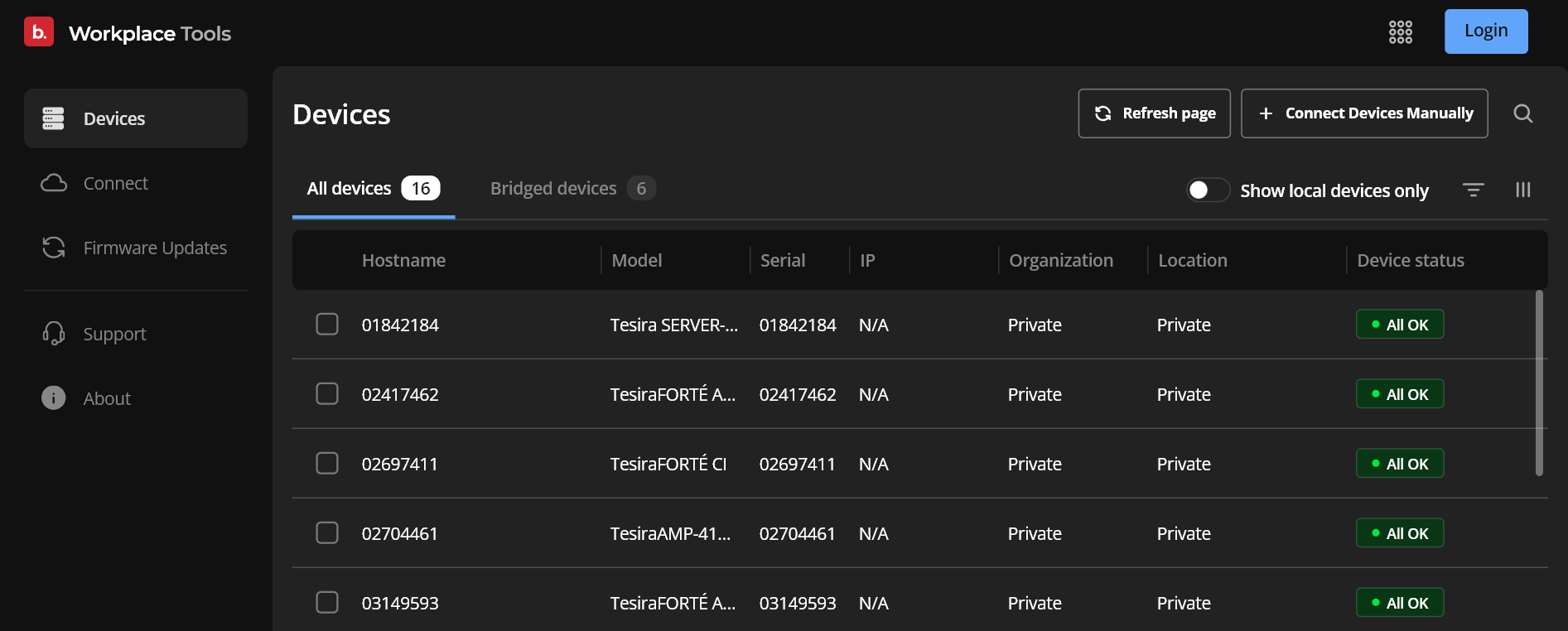
Refresh page button
Reloads the page. This function is useful for forcing recent changes to appear on the page.
+ Connect Devices Manually button
Discovers remote devices connected to the internet and not on the subnet. This process requires entering the device's IP address.
Show local devices only toggle
When toggled on, the page will only show devices on the connected subnet and will not display remote devices.
All devices tab
When this tab is selected, the Devices information pane at the center of the page shows all discovered devices.
Bridged devices tab
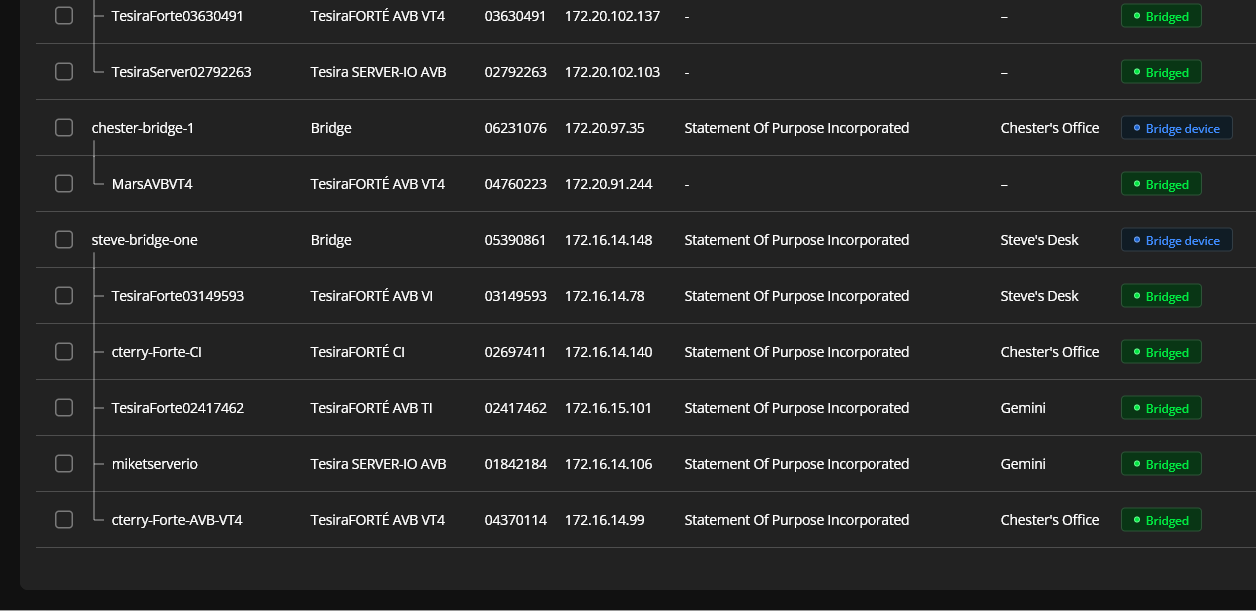
When this tab is selected, the Devices information panel only shows network gateway Workplace Bridge devices as well as devices assigned to those Bridges.
Parent-child display
Devices assigned to a Workplace Bridge appear on the Devices page in a parent-child one-to-many hierarchy.
Device management options
Checking a device's checkbox on the left side of the Devices pane, while logged in, brings up the device-management options available for that device. The available options vary by device type.

- Change locations: Use this tool to assign the selected device to a new to a new location in the Workplace organization.
- Update firmware: Use this button to trigger a download and installation of the most up-to-date version of the device's firmware available online.
- Reboot: Power cycles the device.
- Locate: This button triggers an LED on the front of the device to flash, signaling its physical location in an equipment rack or other installation location.
- Download Logs: Brings up a dialog to download logs to the device the Tools app is running on.
Device settings configuration
For devices with a Workplace Tools configuration app, selecting a device and double-clicking on it opens the device's settings configuration app.
Connect page
The Connect page is used to connect devices to Workplace organizations and assign them to locations within the organizations. It is also used for assigning child devices to parent devices.
- Supported Biamp audiovisual devices can be assigned to Workplace Bridge internet gateway devices.
- Peripherals such as speakers, TVs, and microphones can be assigned to Biamp UCC devices.
For information on how to connect and assign devices, please see: Connecting and Assigning AV & Bridge Devices.
Firmware updates
Available updates tab
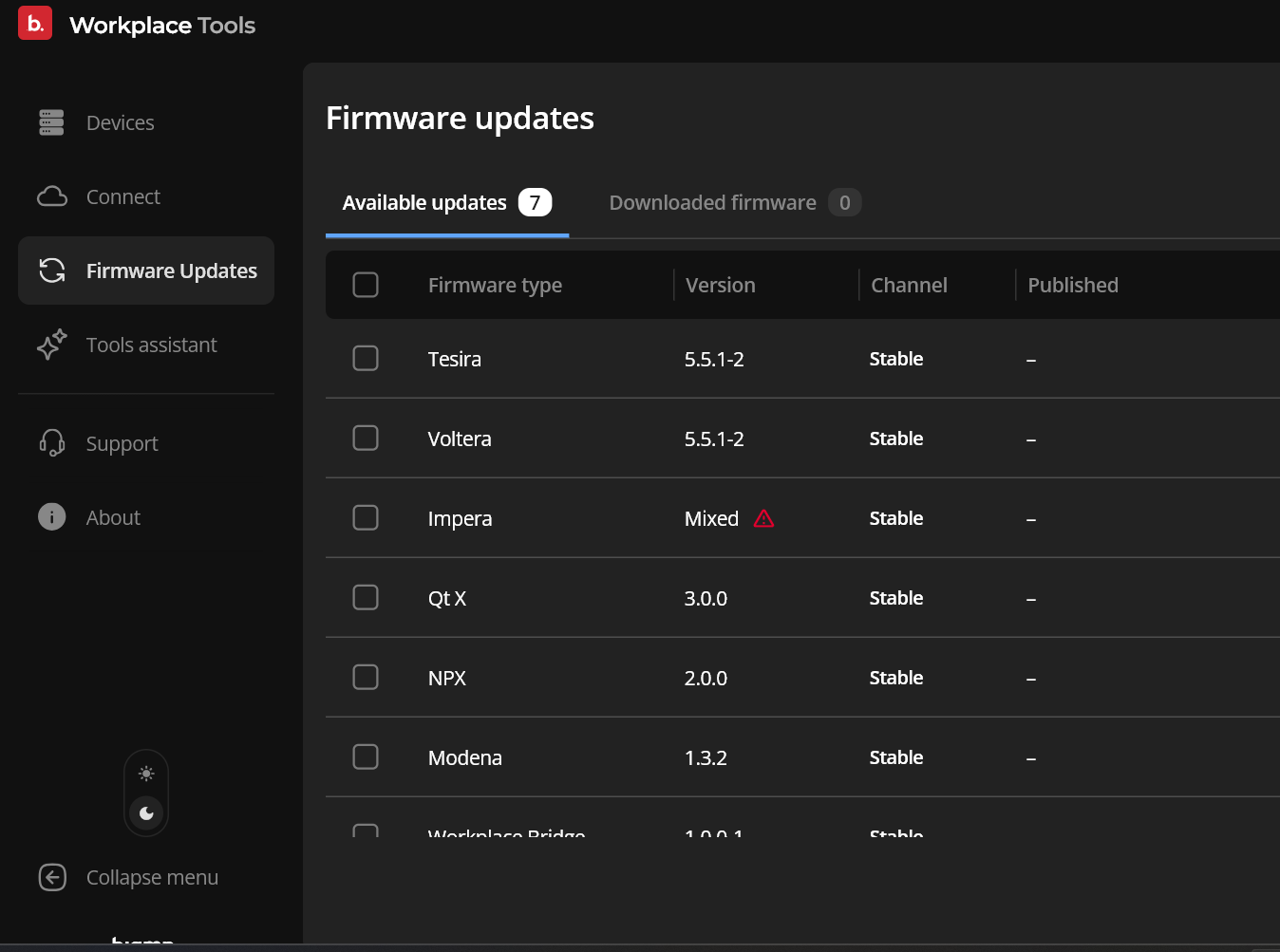
The "Available updates" tab shows the current firmware types available for Biamp Workplace audiovisual device families such as Tesira firmware, Voltera, and Workplace Bridge.
Downloaded software packages
The Downloaded firmware tab shows Biamp firmware update packages downloaded on the computer running the app.
Tool assistant button
The Tool assistant button brings up a page with an AI assistant that can answer questions about the Workplace Tools app. AI agents may provide incorrect answers and perform more accurately when given asked precise, specific questions.
Support button
Use the Support button to open a browser tab to the Biamp Cornerstone technical support knowledge base page for Biamp Workplace products.
About page
Use the About page to find information on the Workplace Tools desktop app version being used, to update the app, access privacy and telementry options, to access the app's logs, and to view the Terms of Use.
About tab
The About tab provides access to:
- The Check for updates button to update the app
- System information about the app version
- The Privacy & Telemetry option checkboxes for anonymous error reporting and enabling advanced debugging.
Privacy default: The Enable anonymous error reporting and usage statistics is set to on by default.
Logs tab
Use the Logs tab to do the following:
- View the app's log
- Copy the log's text content to your device's clipboard
- Refresh the view of the log
- Clear the log
Terms of Use tab
This tab provides the current End User License Agreement for using the Biamp Workplace Tools desktop app.